

Opening a DPC practice in January? Marketing has to start in September. Here is the 15-week timeline, the enrollment window, and how JumpStart runs a launch.

Direct primary care growth since 2021, by the numbers: practice counts, the 2026 HSA law, and corporate entrants, plus what DPC practices should do next.

August is the highest-intent month of the year for DPC practices. Here is the six-week back-to-school marketing plan that fills your panel before fall hits.

Thinking about an AI website builder for your DPC practice? Here's why templated AI sites erode patient trust, and what a real DPC website needs instead.
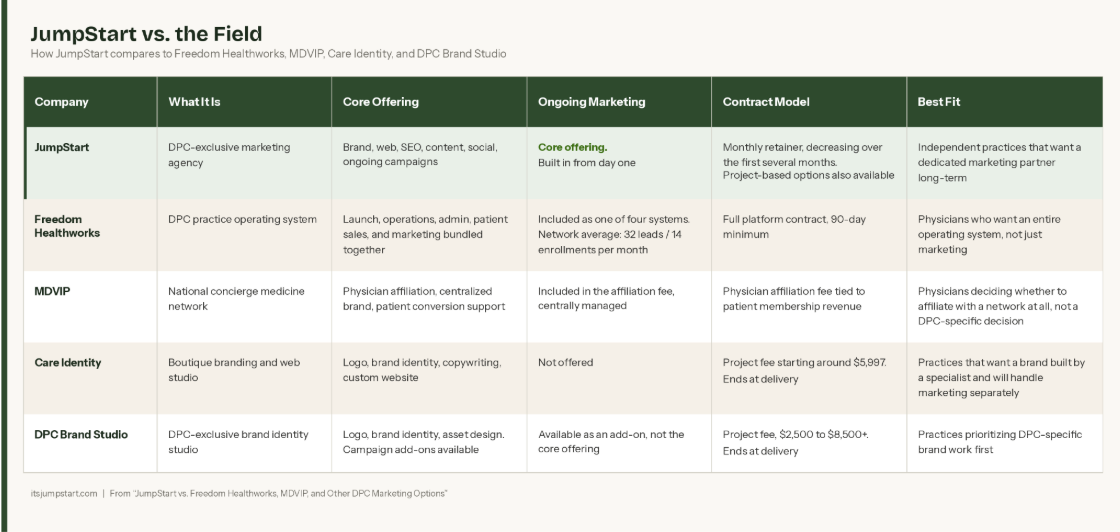
An objective comparison of five DPC marketing and growth options for 2026, including JumpStart, Freedom Healthworks, MDVIP, Care Identity, and DPC Brand Studio.

Not every marketing agency understands direct primary care. Here's exactly what to ask before you hire one, and the red flags that should send you walking.

Learn best practices for engaging and attracting employers to your DPC practice. Step by step guide

If you're reading this in the summer, you might be feeling it already: that mid-year slowdown where patient inquiries dip and your panel growth flatlines. June through August is historically the quietest window for primary care acquisition. People are traveling, kids are out of school, and nobody's thinking about switching doctors. Which makes this the perfect time to build the systems that will fill your panel in the fall. Because here's the thing about DPC patient acquisition: it doesn't happen by accident. You don't have an insurance network sending patients your way. Every member you sign comes from your own effort, your own visibility, and your own reputation. That can feel heavy. But it also means you control it. Here are seven strategies that consistently work for DPC practices. Not theories. Not "best practices" from a marketing textbook. These are the things we've seen move the needle for real practices across the country. 1. Fix Your Google Business Profile Before Anything Else This is the single highest-leverage thing most DPC physicians haven't done properly. When someone in your city searches for a doctor, Google Business Profile determines whether you show up in the map pack (the top three results with the map). If your profile is incomplete, has no reviews, or hasn't been updated in months, you're invisible to the people who are actively looking for care. Here's your checklist: Verify your listing and make sure your name, address, and phone number are accurate Choose the right primary category ("Direct Primary Care" if available; "Family Practice Physician" or "General Practitioner" otherwise) Write a full business description that includes "direct primary care" and your city name Upload at least 10 high quality photos of your office, your team, and your space Add your services, insurance info (or "membership-based" language), and business hours Post an update at least twice a month; Google rewards active profiles Do this before you spend a dollar on ads or social media. It's free, and it's where your most motivated prospective patients are already looking. 2. Ask for Reviews (and Make It Stupid Easy) Reviews are the currency of local healthcare marketing. A practice with 40+ Google reviews and a 4.8 rating will get clicks over a practice with 3 reviews every single time. Patients trust other patients more than they trust your website copy. The problem is that most physicians feel awkward asking. Get over it. Your patients love you. They chose to pay out of pocket for your care. They will leave a review if you ask; they just need a nudge. Create a simple process: Send a follow-up text or email after visits with a direct link to your Google review page Put a small sign in your office with a QR code that goes to your review page Personally ask your long-term patients during their next visit Aim for two to three new reviews per month. That's enough to build momentum and keep your profile fresh in Google's eyes. 3. Build an Employer Outreach List Most DPC practices focus exclusively on direct-to-consumer marketing. That's leaving money on the table. Employer-sponsored DPC is growing fast, and a single employer contract can add 10 to 50 members to your panel overnight. We wrote a full guide on how to market your practice to employers, but here's the short version: Start small. Make a list of 20 local businesses with 10 to 100 employees: think accounting firms, law offices, tech startups, construction companies, restaurants with salaried managers. These are businesses big enough to care about employee benefits but small enough that the owner or HR person will actually take your call. Your pitch is simple: "Your employees get unlimited primary care for a flat monthly fee. No copays, no deductibles for basic care, and same-day or next-day appointments. It reduces ER visits, lowers your overall healthcare spend, and makes your benefits package more competitive." Offer a free lunch-and-learn at their office. Bring materials. Let them ask questions. The DPC model sells itself once you're in the room. 4. Create Content That Answers Real Questions Your blog and social media should answer the exact questions your prospective patients are typing into Google. Not what you think they should be asking; what they're actually asking. Here are search queries with real volume in the DPC space: "What is direct primary care?" "DPC vs concierge medicine" "Is direct primary care worth it?" "Direct primary care [your city]" "How much does DPC cost?" "Can I use insurance with DPC?" Each of those queries is a blog post waiting to be written. Each one is an opportunity to show up in search results and bring a prospective patient to your site. Write in plain language. Answer the question in the first paragraph. Go deeper in the rest of the post. Include a call to action at the end. If you post one article per month targeting a specific keyword, you'll have 12 indexed pages working for you within a year. That compounds. A blog post you write today can bring you patients two years from now. If you want to understand why original content matters so much, we've written about that too. 5. Run a Patient Referral Program Your existing patients are already your best salespeople. They're the ones telling their friends about how they texted their doctor at 8pm and got a response. They're the ones comparing their 45-minute DPC appointments to the 10-minute rush they used to get. Give them a reason to formalize that word of mouth. A referral program doesn't have to be complicated. Options that work: One month free for every referred patient who signs up A gift card ($25 to $50) for each successful referral A simple "thank you" note or small gift (people appreciate being appreciated) Track referrals so you know which patients are your best advocates. Those are the people you want to feature in testimonials, invite to events, and keep closest. 6. Partner with Complementary Local Businesses DPC physicians often exist in a bubble. Your practice, your patients, your office. But the people you want to reach are already spending time and money at other local businesses. Think about who shares your ideal patient profile: Gyms and fitness studios (health-conscious adults) Financial advisors and accountants (people who understand value-based spending) Wellness practitioners: chiropractors, therapists, nutritionists HR consulting firms (employer channel) Real estate agents (new residents need a doctor) Approach these businesses with a partnership pitch. Leave brochures at their offices. Offer to co-host a community event. Set up a cross-referral arrangement. You're not competing with any of them; you're complementing what they already do. 7. Show Up in Your Community (Physically) Digital marketing matters. But DPC is a relationship-based model, and relationships start in person. Get out of your office: Set up a booth at your local farmers market Sponsor a youth sports league and attend the games Host a free health screening event at a community center Attend your local Chamber of Commerce meetings Speak at a Rotary Club or business networking group Every one of these puts you face to face with potential patients in a low-pressure setting. They see you as a real person, not a website. That matters more than any ad you'll ever run. If you're looking for seasonal ideas on how to translate community outreach into panel growth, read our guide on back-to-school marketing for DPC practices for a tactical example of how this works. The Strategy Behind the Tactics These seven strategies aren't random. They map to the three things every DPC practice needs: Visibility: Can people find you? (Google Business Profile, content, community events) Credibility: Do they trust you when they do? (Reviews, partnerships, your website) Conversion: Can they easily take the next step? (Clear CTAs, referral programs, employer pitches) If you're strong on visibility but weak on credibility, people find you and then choose someone else. If you have great credibility but no visibility, nobody finds you in the first place. All three have to work together. Building a strong brand identity ties all three together: it makes you more findable, more trustworthy, and easier to choose. The Summer Slowdown Is Your Runway Don't wait until September to panic about panel growth. Use June, July, and August to build the infrastructure: set up your Google Business Profile properly, write three blog posts, build your employer outreach list, launch a referral program. When the fall rush hits and patients start searching for new doctors, you'll be the one they find. If building all of this feels overwhelming (because you're also, you know, practicing medicine), that's exactly why JumpStart exists. We build DPC marketing systems so you don't have to figure it out alone. Let's build your patient acquisition engine. Schedule a free consultation and we'll map out what makes sense for your practice. Frequently Asked Questions About DPC Patient Acquisition How long does it take to fill a DPC patient panel? Most DPC practices take 12 to 24 months to reach a full panel of 400 to 600 patients. The timeline depends on your market, your marketing effort, and whether you're doing direct-to-consumer, employer, or both. Practices that invest in consistent marketing from day one tend to reach capacity faster. What is the best way to get new patients for a DPC practice? The highest-impact combination is a well-optimized Google Business Profile, steady patient reviews, one to two blog posts per month targeting relevant keywords, and active employer outreach. Referral programs and community partnerships round out the strategy and tend to convert at the highest rate. Should DPC practices use paid advertising? Paid ads (Google and Facebook) can accelerate growth, but they work best when your foundational marketing is already in place: a strong website, a complete Google Business Profile, and enough reviews to build trust. Without those, you'll pay for clicks that don't convert. How do I market my DPC practice to employers? Start with a targeted list of 20 to 30 local businesses with 10 to 50 employees. Create a one-page leave-behind and a short slide deck. Offer a free lunch-and-learn at their office. For the full playbook, read our guide: Why Employers Are Choosing DPC in 2026.

What Is Direct Primary Care Marketing? A Complete Guide for DPC Physicians

Whether Google or ChatGPT, being there when potential patients are searching, matters!